
No Signal on Monitor? A Complete Troubleshooting Guide
Work through the most useful checks for a monitor showing No Signal, from cable and input selection to graphics output and display detection.
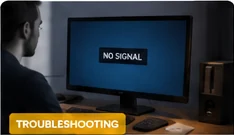
A “No Signal” message usually means the monitor is powered but is not receiving a usable video signal from the selected input. Work from simple physical checks toward software and hardware causes.
1. Confirm the input source
Use the monitor's input/source menu and select the port actually connected to the computer. Auto-detection can fail when several ports are connected.
2. Reseat the cable
Disconnect and reconnect HDMI, DisplayPort or USB-C at both ends. If possible, test another cable or a different port.
3. Verify the computer is outputting video
For a desktop with a dedicated graphics card, make sure the monitor is connected to the graphics card rather than an inactive motherboard video port.
4. Test another display or source
Connecting the computer to another monitor—or the monitor to another device—helps narrow the problem to the display, source or cable path.
5. Check resolution and refresh rate after signal returns
An unsupported timing can cause a blank screen or fallback behavior. Start with a common resolution and refresh rate, then increase settings gradually.
When hardware service is reasonable
If the same monitor shows no signal from multiple known-good sources and cables, or if ports are physically damaged, deeper hardware diagnosis may be needed.
If there is still no image with multiple known-good sources and cables, the remaining possibilities include the monitor input circuitry, graphics hardware or power-related faults. At that point, the most useful evidence is which combinations were tested and whether the monitor’s own menu remained visible.
If the monitor briefly detects the source and then goes blank, test a lower refresh rate or resolution. High-bandwidth modes place more demand on cables, adapters and ports. An image that works reliably at a lower setting can indicate a connection or compatibility limitation rather than panel failure. After restoring a stable picture, use the browser tests to check resolution, color, motion and pixel condition.
When the image appears but is unstable
- Select the correct input on the monitor instead of relying only on automatic source detection.
- Reconnect the cable at both ends and, when possible, test a known-good cable.
- Try another output port on the computer or another input on the monitor.
- Remove docks, splitters and adapters temporarily to reduce the number of possible failure points.
- For desktop systems, verify that the cable is connected to the intended graphics output.
Work through the signal path in order
“No signal” does not automatically mean the monitor is defective. The display can be powered and working correctly while receiving nothing from the computer, console, dock or adapter. Start by confirming that the monitor’s own on-screen menu appears. If the menu works, the panel and basic electronics are at least operating, so the next step is to trace the video path.
Separate a display problem from a signal problem
Related tests and guides
Remember: browser diagnostics are observational tools. They can reveal repeatable visual symptoms, but they do not replace laboratory measurement or a technician when hardware diagnosis is required.